Gestion des mots de passe et complexité
Contexte
Pour renforcer la sécurité de votre application, il est possible de définir une politique de complexité des mots de passe. Cette configuration est globale et s'applique à tous les utilisateurs.
Prérequis
- Droits d'administration système
- Accès aux paramètres d'authentification
- Compréhension des politiques de sécurité de l'organisation
Accès
Paramétrage accessible via Organisation > Authentification.
Politique des mots de passes
Vous pouvez imposer des règles strictes sur les mots de passe internes en activant une politique de mot de passe. Chaque critère peut être activé ou desactivé.
Complexité
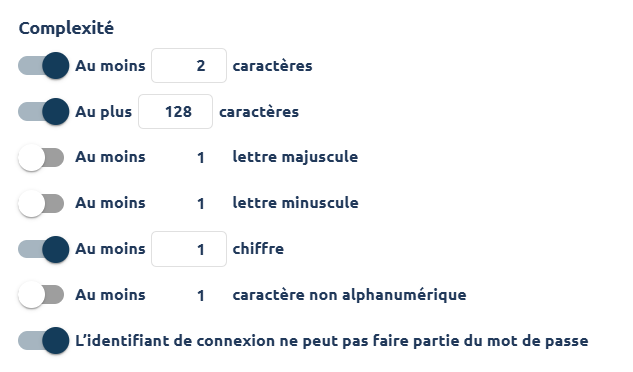
Cette section permet de gérer la complexité des mots de passe avec les critères suivants :
- Nombre minimal de caractères,
- Nombre maximum de caractères,
- Nombre minimum de lettre majuscule,
- Nombre minimum de lettre minuscule,
- Nombre minimum de chiffre,
- Nombre minimum de caractère non alphanumérique (caractère spéciaux : !, @, # ...),
- L'interdiction d'avoir l'identifiant de connexion dans le mot de passe.
Expiration

En accord avec votre politique de sécurité interne, vous pouvez activer l'expiration des mots de passe à une fréquence définie.
Historique

En accord avec votre politique de sécurité interne, vous pouvez activer l'historique des mots de passe et empecher vos utilisateurs de réutiliser le nombre de mots de passe précédent que vous souhaitez.
Cette configuration est généralement gérée par l'administrateur système.
Gestion administrative des mots de passe
En tant qu'administrateur, vous pouvez gérer les mots de passe utilisateurs via plusieurs outils.
Réinitialisation depuis la fiche utilisateur
-
Type de connexion : Application : Vous pouvez réinitialiser le mot de passe manuellement depuis la fiche utilisateur.

-
Type de connexion Réseau : La gestion est externalisée, le champ n'apparait pas.

Outil AdminTools
Accès : Menu Outils > AdminTools > Sélectionner Password dans la liste déroulante.

- Usage : Déblocage d'un compte utilisateur ayant oublié son mot de passe
- Sécurité : Action tracée dans les logs d'audit