Synchronisation Active Directory
Contexte
Avanteam permet d'automatiser la gestion des identités via la synchronisation avec votre annuaire d'entreprise (AD/LDAP).
Prérequis
- Compte de service avec droits de lecture sur l'Active Directory
- Accès aux outils d'administration (SyncTool, AdminTools)
- Pour Azure AD : Application enregistrée dans le portail Azure avec les permissions appropriées
- Droits d'administration système
Principe de fonctionnement
- Automatisation : Les comptes sont créés ou mis à jour automatiquement lors de la première connexion (via ADFS/SSO) ou par une tâche planifiée nocturne (
SynchroADFS). - Origine "Réseau" : Lorsque ce mode est actif, certains champs de la fiche utilisateur sont en lecture seule (grisés) car ils sont pilotés directement par votre service informatique (ex: Nom, Email, Département).
- Mappage des attributs : La synchronisation récupère automatiquement les métadonnées clés :
- Manager : Pour construire l'organigramme sans saisie manuelle.
- Service/Société : Pour affecter l'utilisateur au bon noeud de la structure.
- Authentification unique (SSO) : Les utilisateurs n'ont pas de mot de passe à saisir dans Avanteam ; le système reconnaît leur session Windows ouverte.
Mise en œuvre technique de la synchro AD
La configuration s'effectue généralement via l'outil SyncTool ou dans les paramètres avancés de l'annuaire :
Connexion
Renseignez le chemin LDAP (ex: LDAP://DC=monentreprise,DC=com) et les identifiants d'un compte de service possédant les droits de lecture sur l'AD.
Filtres d'extraction
Définissez les règles pour cibler les utilisateurs (ex: (&(objectCategory=person)(objectClass=user)(memberOf=CN=Groupe_Avanteam,...)).
Mappage des champs
Associez les attributs AD aux champs Avanteam :
sAMAccountName→Identifiantmail→Emailmanager→Responsable
Planification
Activez l'agent de synchronisation pour automatiser la mise à jour (fréquence quotidienne recommandée).
Synchronisation Azure AD
Pour les environnements cloud, Avanteam propose également une synchronisation avec Azure Active Directory.
Accès : Menu Outils > AdminTools > Sélectionner SynchroAzureAD dans la liste déroulante.
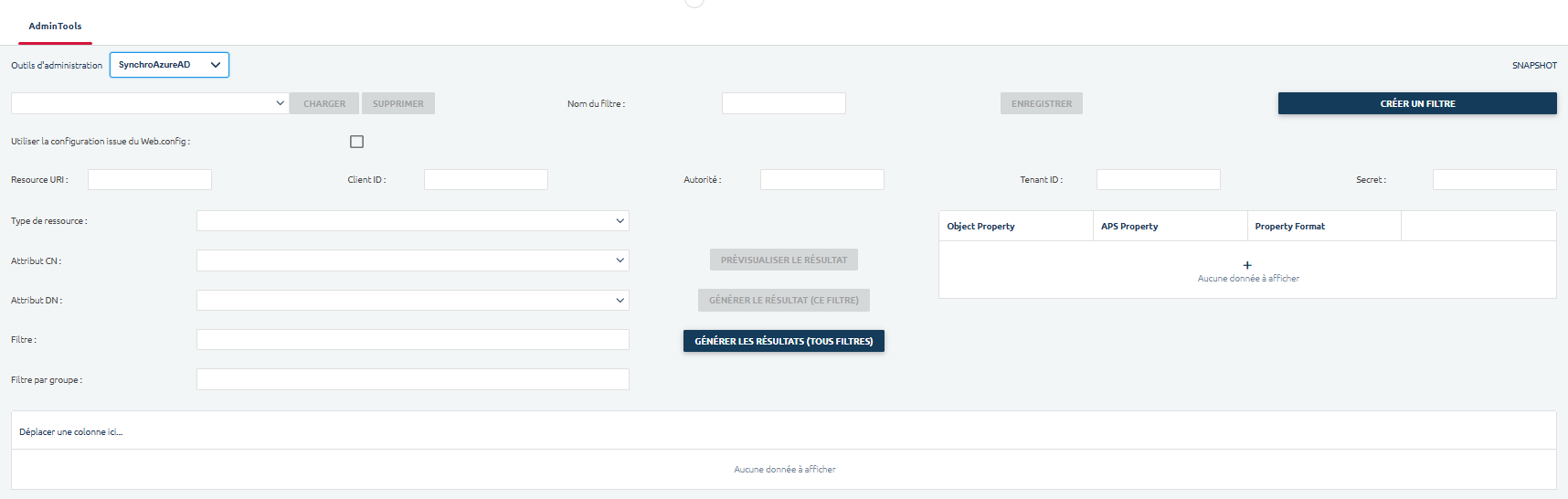
Paramètres de connexion technique
Ces champs permettent d'établir la liaison sécurisée avec votre application enregistrée dans le portail Azure :
- Utiliser la configuration issue du Web.config : Si cochée, le système ignore les champs ci-dessous et utilise les paramètres techniques saisis directement dans le fichier de configuration du serveur.
- Resource URI : L'identifiant de la ressource Microsoft Graph (généralement
https://graph.microsoft.com). - Client ID : L'ID d'application (Application ID) généré lors de la création de l'application dans Azure AD.
- Autorité : L'URL du service d'authentification (ex:
https://login.microsoftonline.com/). - Tenant ID : L'identifiant unique de votre annuaire Azure AD (Directory ID).
- Secret : La clé secrète (Client Secret) générée dans Azure pour autoriser la connexion.
Configuration du filtre de synchronisation
Vous pouvez définir précisément qui doit être importé :
- Type de ressource : Permet de choisir entre la synchronisation des Utilisateurs ou des Groupes.
- Attribut CN / DN : Identifie les propriétés Azure à utiliser comme "Common Name" et "Distinguished Name" (généralement
displayNameetid). - Filtre : Permet de saisir une requête OData pour restreindre l'import (ex: importer seulement les utilisateurs dont le département est "Qualité").
- Filtre par groupe : Permet de ne synchroniser que les membres appartenant à un groupe Azure AD spécifique.
Mapping des propriétés
Cette section définit la correspondance entre les données Azure et les champs Avanteam :
- Object Property : La propriété source dans Azure AD (ex:
mail,givenName,surname). - APS Property : Le champ de destination dans la fiche utilisateur Avanteam (ex:
Email,Prénom,Nom). - Property Format : Définit si la donnée nécessite un traitement particulier (Texte, Date, etc.).
Actions de synchronisation
- PRÉVISUALISER LE RÉSULTAT : Affiche la liste des utilisateurs qui seraient impactés sans effectuer de modification réelle. Indispensable pour vérifier ses filtres.
- GÉNÉRER LE RÉSULTAT (CE FILTRE) : Lance l'import/mise à jour uniquement pour le filtre actuellement sélectionné.
- GÉNÉRER LES RÉSULTATS (TOUS FILTRES) : Lance une synchronisation globale en enchaînant toutes les règles configurées.
Une synchronisation mal configurée peut désactiver un grand nombre d'utilisateurs ou créer des doublons. Utilisez toujours le bouton Prévisualiser avant de lancer une génération réelle.