Exploiter les filtres et tris
Pour organiser et affiner l'affichage de vos données directement dans une vue, vous disposez d'outils de tri et de filtrage dynamique par colonne.
1. Trier les données
Le tri permet de classer vos enregistrements selon un critère précis pour y voir plus clair.
- Comment faire : Cliquez sur l'entête de la colonne souhaitée. Un premier clic trie par ordre croissant (A-Z ou 0-9), un second par ordre décroissant.
- Indicateur : Une petite flèche apparaît à côté du nom de la colonne pour indiquer le sens du tri.
- Bénéfice : Idéal pour retrouver les documents les plus récents (tri par date) ou classer les fiches par client ou fournisseur.
2. Filtrer les données par colonne
Le filtrage permet de masquer temporairement les informations qui ne vous intéressent pas pour vous concentrer sur l'essentiel.
- Comment faire : Cliquez sur l'icône entonnoir (filtre) située dans l'entête de la colonne.
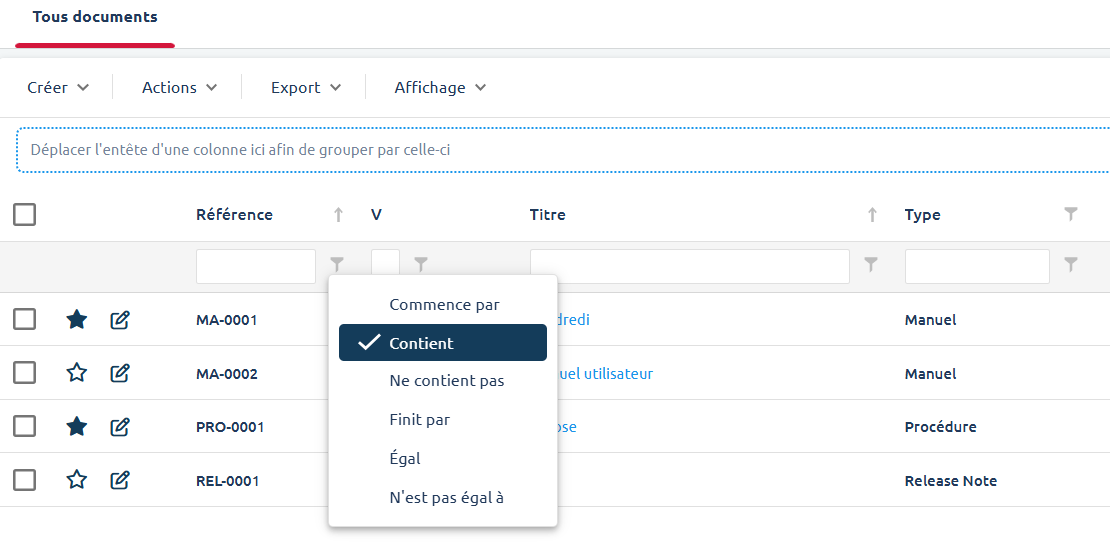
Types de filtres disponibles
Selon le type d'information contenue dans la colonne, Avanteam adapte les options pour plus d'efficacité :
Filtre Texte (pour les noms, références, descriptions)
- Contient : Affiche les lignes où le texte saisi est présent n'importe où (le plus utilisé).
- Commence par / Se termine par : Pour cibler des préfixes (ex: références commençant par "FAC").
- Est égal à / Est différent de : Pour une recherche exacte.
- Est vide / N'est pas vide : Pratique pour identifier les dossiers où une information est manquante.
Filtre Liste de valeurs (pour les statuts, services, catégories)
- Affiche une liste de cases à cocher avec toutes les valeurs présentes dans la colonne.
- Permet de sélectionner une ou plusieurs valeurs simultanément (ex: voir les dossiers "En cours" ET "En retard").
Filtre Date (pour les dates de création, d'échéance, de validation)
- Sélection de période : "Hier", "Ce mois", "Cette année", etc.
- Plage personnalisée (Entre ... et ...) : Pour filtrer sur un intervalle précis.
- Avant / Après : Pour cibler les dossiers créés avant ou après une date spécifique.
Filtre Numérique (pour les montants, quantités)
- Supérieur / Inférieur / Égal : Pour filtrer par seuils (ex: montants > 1000€).
- Entre deux valeurs : Pour définir une fourchette de prix ou de quantité.
Cumul et gestion des filtres
- Cumul des filtres : Vous pouvez filtrer plusieurs colonnes en même temps (ex: Filtrer par Statut = "Validé" ET Propriétaire = "Mon Nom").
- Effacer les filtres : Un bouton "Effacer tout" ou une icône spécifique permet de lever tous les filtres actifs et de revenir instantanément à la vue complète.
Le bénéfice pour vous
Ces outils transforment vos vues en véritables tableaux de bord interactifs. Sans avoir besoin de faire une nouvelle recherche, vous extrayez en quelques secondes une sous-liste de travail (ex: la liste de mes factures en attente pour le fournisseur X).