Tour d'horizon de l'interface
L'interface est découpée en trois zones principales pour faciliter la navigation.
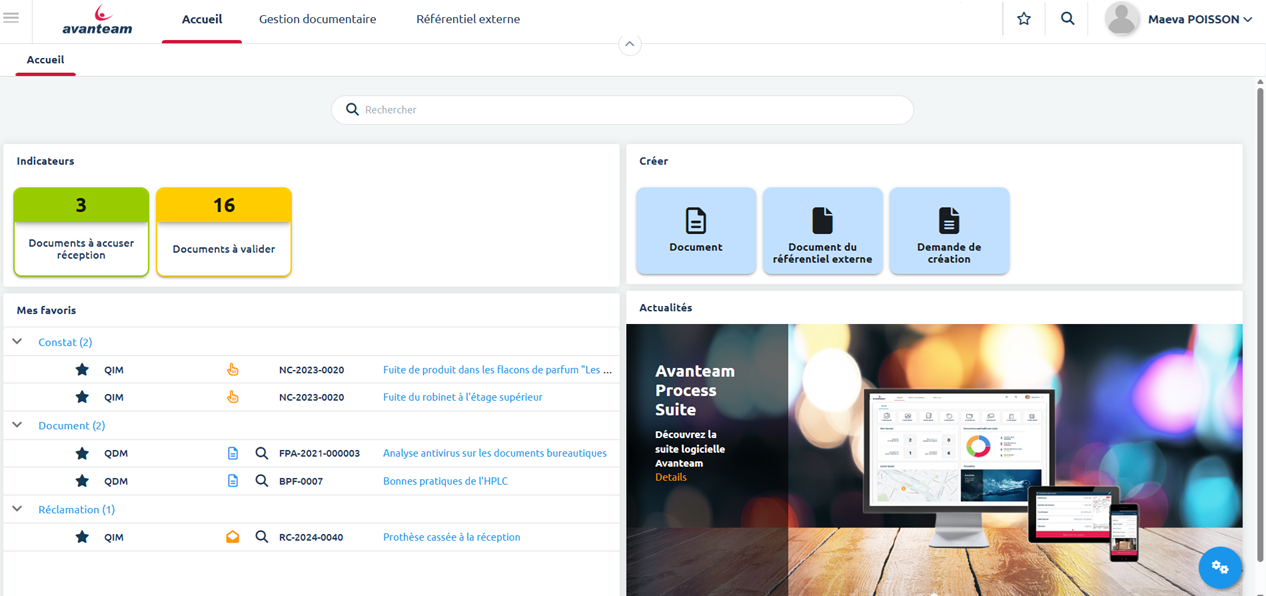
A. Barre de navigation
C'est votre tableau de bord disponible en haut de l'écran.
-
Menu principal (☰) : Situé à l'extrême gauche, ce menu burger ouvre le navigateur correspondant à l'entrée sélectionnée.
-
Logo : Cliquez dessus pour revenir à tout moment à votre page d'accueil.
-
Entrées : A la suite de l'acceuil, permet d'accéder aux différents modules de votre solution métier
-
Favoris : Permet d'accéder à ces documents favoris. Des étoiles sont disponibles sur certaines vues de l'application pour caractériser un document en favoris.
-
Recherche : Tapez un mot-clé (numéro de dossier, nom client) pour retrouver instantanément un document.
-
Profil utilisateur : À droite, pour accéder aux réglages et à la déconnexion.
B. Navigateur
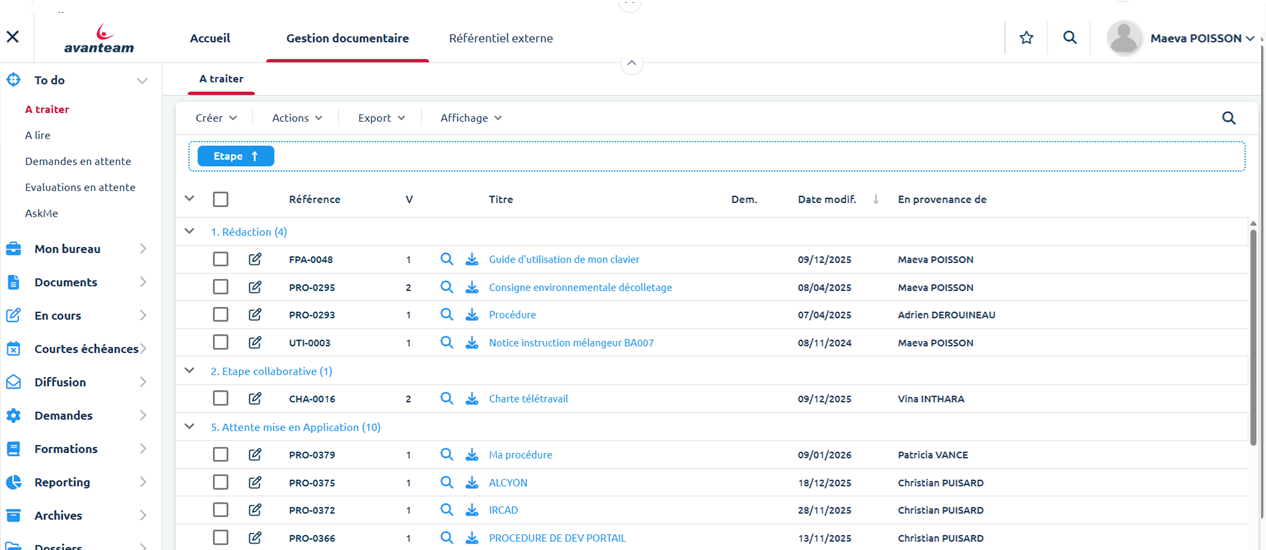
Ce panneau à gauche liste les éléments auxquels vous avez accès
- Cliquez sur une rubrique pour dérouler ses sous-menus.
- Sélectionnez une vue ou un graphique pour voir apparaitre son contenu sur la zone centrale.
C. Zone Centrale
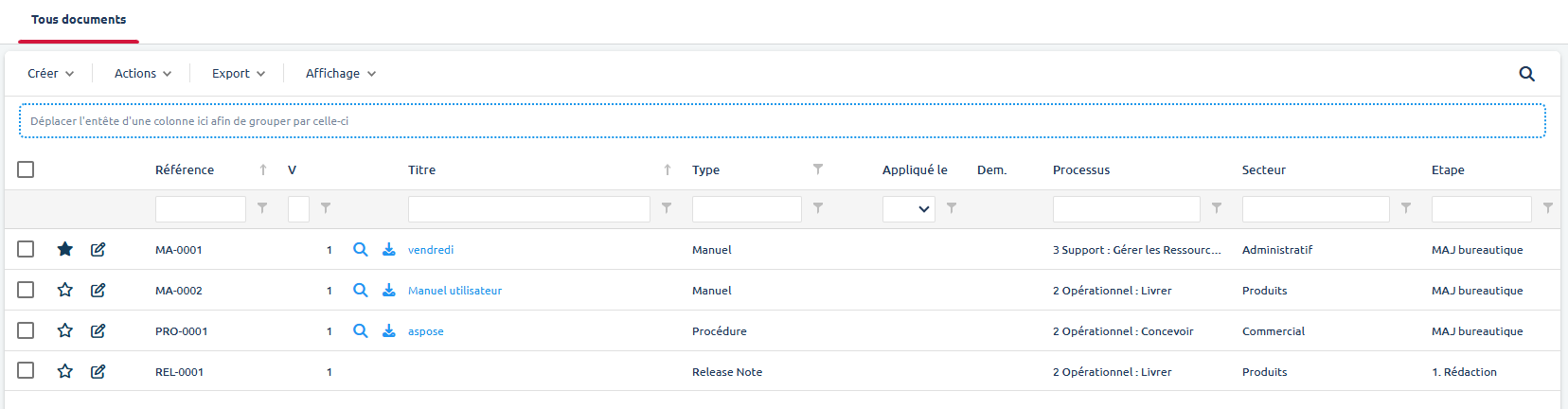
C'est ici que vous travaillez, le contenu affiché peut être de type :
- Vue : présente aux enregistrements correpondans au titre de la vue
- Formulaires : Fiche détaillée d'un enregistrement ouvert.
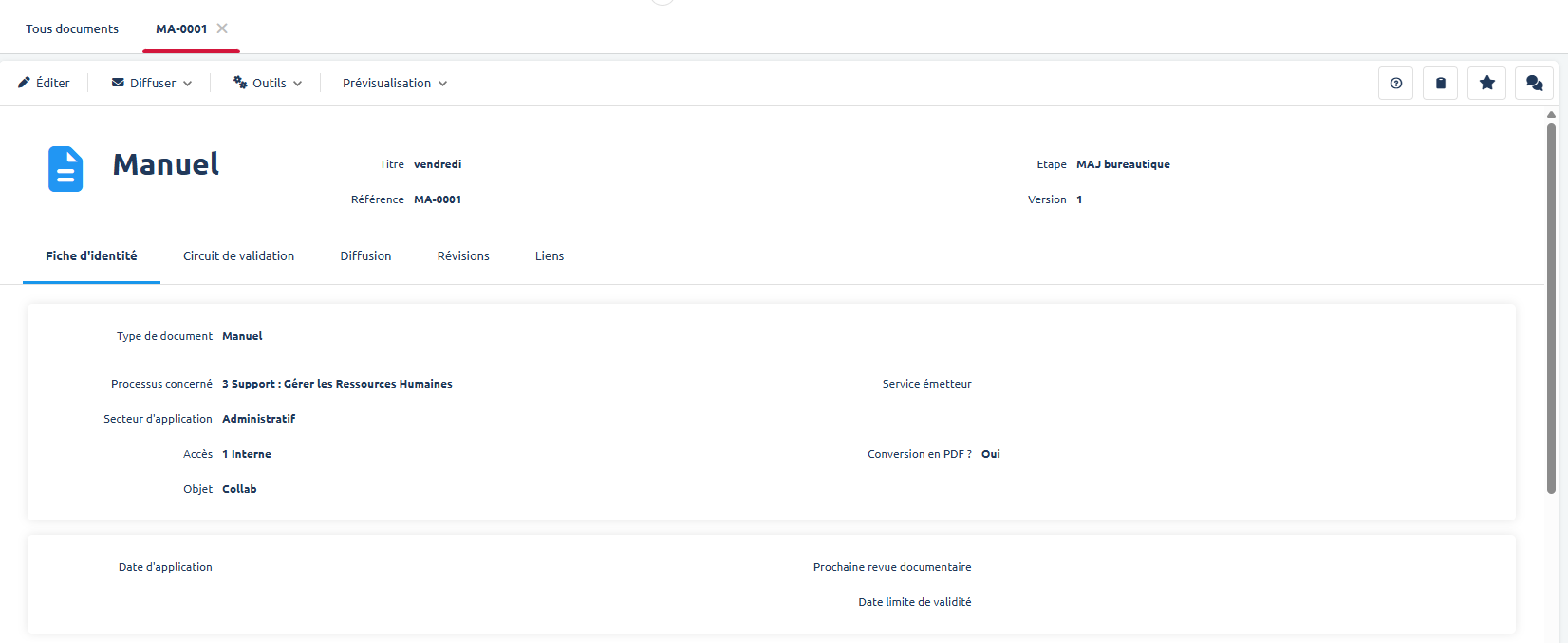
💡Au clic sur un élément d'une vue, celui-ci s'ouvre dans un nouvel onglet dans la zone principale.